How to Compress a PDF Without Losing Quality (2026 Methods)
Shrink a scanned or image-heavy PDF without making text fuzzy or images pixelated. Online, desktop, and command-line methods compared — pick what fits your file.
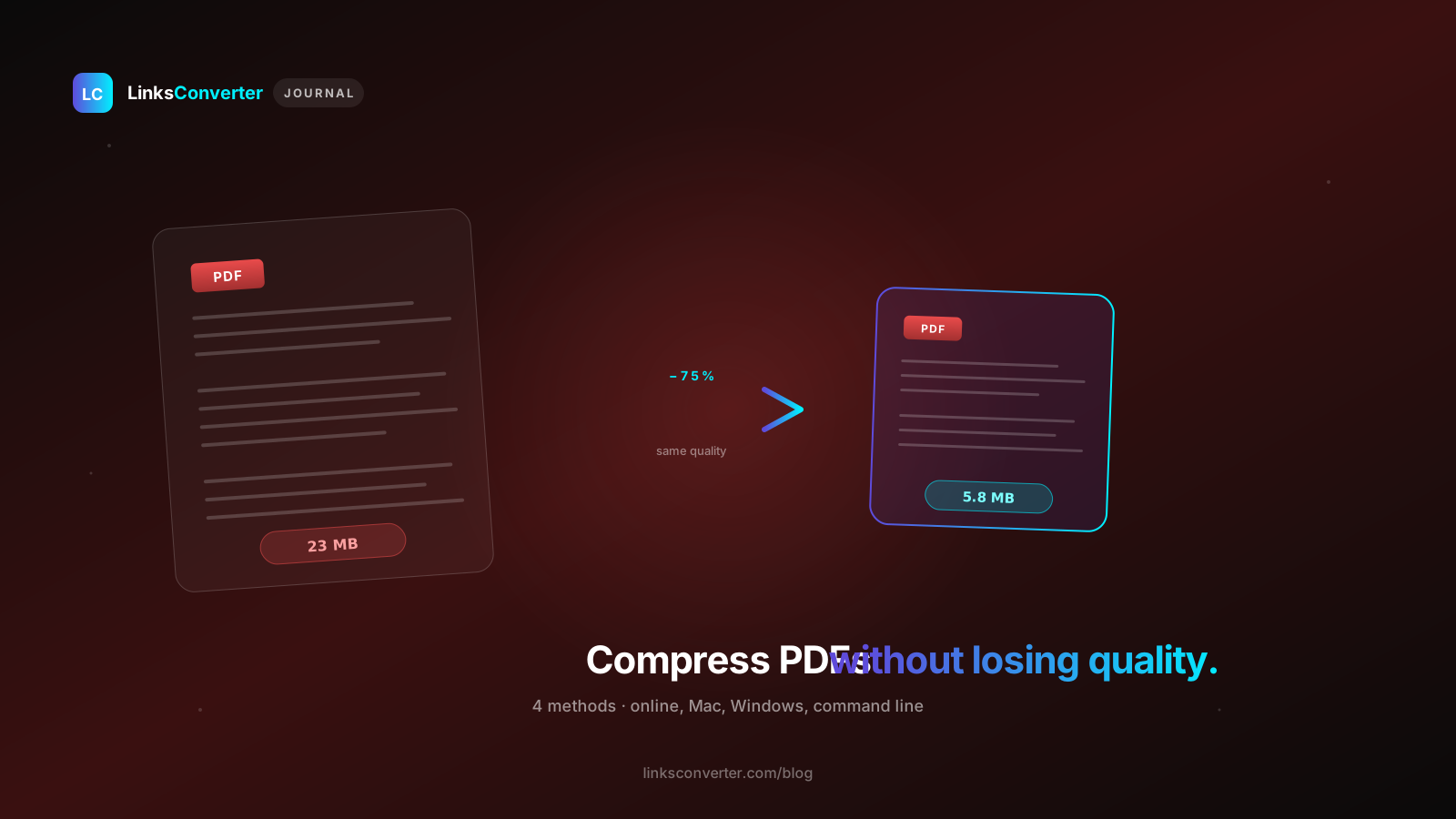
Your bank wants the loan document. Your university wants the assignment. Your client wants the proposal. Every one of them caps uploads at 5 MB — and your PDF is 23 MB. You've been here.
Good news: what makes a PDF big is almost always images, and images are what compression shrinks — if you know what's making yours big. Here's the why, the four methods, and exactly which one fits your file.
⚡ The 30-second answer
- What bloats a PDF: almost always images, not text.
- Fastest fix: an online compressor — one click, no settings to choose.
- Sensitive file? Use the offline Ghostscript method — nothing ever leaves your computer.
What's actually making your PDF huge? #
PDFs are containers — they hold text, images, fonts, and metadata. One of those is almost always the culprit, and it's rarely the text.
| Source | Why it's big |
|---|---|
| Scanned document | Each page is a 300 DPI image, often uncompressed |
| PowerPoint export | Images embedded at full phone-camera resolution |
| Phone "Scan to PDF" | A multi-megapixel photo for every page |
| Word doc with images | Same — images stored at full resolution |
| Plain-text PDF | Should be tiny (<500 KB). If it's huge, it's bloated metadata or duplicated fonts |
Method 1: Online — best for most people #
No install, works on any device, finished before your coffee cools.
Method 2: Adobe Acrobat Pro #
Already paying for Acrobat Pro? Its built-in compressor is reliable, if gentle.
- Open the PDF in Acrobat Pro
- File → Save As Other → Reduced Size PDF
- Choose a compatibility level (Acrobat 10 or newer compresses best)
- Save
Expect 30–50% smaller — steady, not aggressive.
Method 3: Mac Preview — free, built in #
Every Mac hides a basic compressor inside Preview.
- Open the PDF in Preview
- File → Export…
- In the Quartz Filter dropdown, choose Reduce File Size
- Save
Method 4: Command line (Ghostscript) #
For developers and anyone compressing PDFs in bulk. This is what most online tools — ours included — run under the hood.
gs -sDEVICE=pdfwrite -dCompatibilityLevel=1.4 \
   -dPDFSETTINGS=/ebook \
   -dNOPAUSE -dQUIET -dBATCH \
   -sOutputFile=compressed.pdf input.pdf
The -dPDFSETTINGS flag sets the trade-off:
| Setting | Use case | Typical reduction |
|---|---|---|
/screen | Web viewing, low DPI | 80–90% |
/ebook | Reading on devices | 60–75% |
/printer | High-quality print | 30–50% |
/prepress | Pro print (CMYK) | 10–25% |
Compress a whole folder at once:
for f in *.pdf; do
  gs -sDEVICE=pdfwrite -dCompatibilityLevel=1.4 \
     -dPDFSETTINGS=/ebook -dNOPAUSE -dQUIET -dBATCH \
     -sOutputFile="compressed_$f" "$f"
done
Fewer pages = a smaller file, free #
If your PDF carries pages you don't need, the fastest "compression" is to delete them:
- Split a PDF — pull out only the pages you need
- Merge PDFs — combine several small files into one
Trimming a 50-page document down to the 10 pages that matter is a 5× reduction — with zero quality loss.
Wrapping up #
For a scanned or image-heavy PDF, try one online pass first. For big batches or confidential files, the command-line route keeps everything on your own machine.
Compress your first PDF free, no signup: Open the PDF Compressor →
Need something else? We also merge, split, and convert between PDF and Word.
Frequently asked questions
Will compressing my PDF break OCR or text search?
Can I compress a password-protected PDF?
Does compression remove a digital signature?
How small can a PDF actually get?
Is online compression safe for confidential documents?
Free file converters & video downloaders
No sign-up, no watermark, no email. Convert and download files online, often within a minute.
Browse all converters