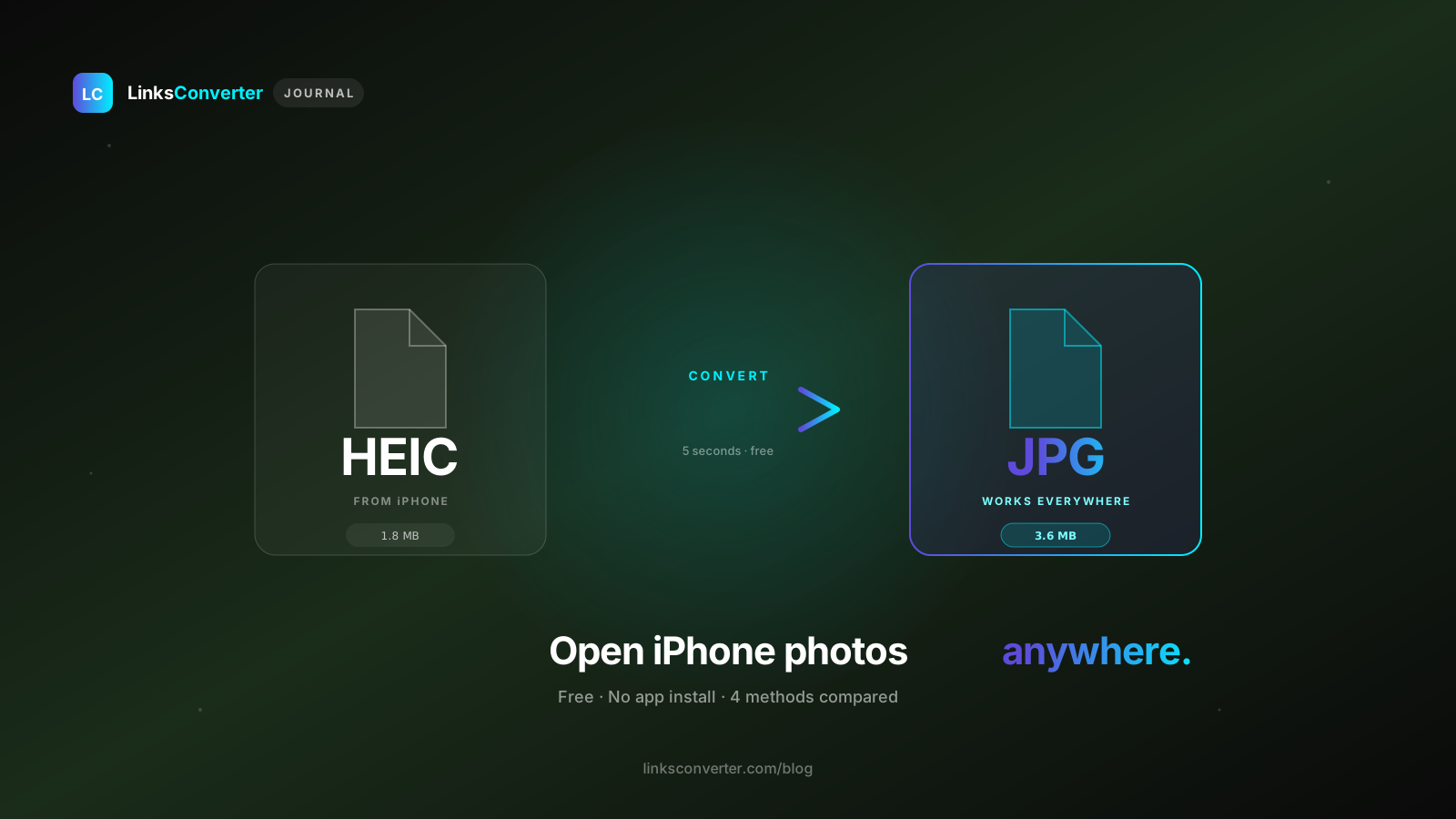
Convert HEIC to JPG Free — No App, No Sign-Up Needed
Turn any HEIC photo into JPG in seconds. No app install, no account, and your file is securely deleted two hours after conversion.
You text a photo to a friend and it shows up as a blank, grey square. You try to attach an image to a job application form and the site rejects it outright. You try to open a photo on an older Windows laptop and get absolute silence.
The culprit behind every one of these headaches is a HEIC file trying to go somewhere that only speaks JPG.
Fixing it takes under four seconds. Drop the photo into a free HEIC-to-JPG converter, swap the container type, and download a universal photo that opens anywhere. Here's why your phone creates these files in the first place, how to convert one, and the privacy rules worth knowing.
Why Modern Devices Save Photos as HEIC #
HEIC (High Efficiency Image Container) is Apple's space-saving image format. It packs the same visible quality, colors, and clarity into roughly half the file size of a legacy JPG. For phone manufacturers, the transition was pure math: smaller photo files mean more room on your storage and your cloud backup.
The catch is universal compatibility. Thousands of websites, older laptops, Android devices, and upload forms still expect a standard JPG and choke the second you feed them a .heic file. You didn't do anything wrong — it's a classic case of device updates outrunning older web standards.
- HEIC: around half the file size, but won't open in many places.
- JPG: slightly larger footprint, but opens anywhere natively.
Converting to JPG trades a small amount of storage space for universal utility. For any photo you actually need to send somewhere, that trade-off is worth it every time.
How to Convert HEIC to JPG #
This setup requires zero software installation, works across mobile and desktop, and finishes before you can take a sip of coffee.
- Get your file ready — have your HEIC photo on your computer or phone.
- Upload to the converter — head to the HEIC to JPG tool, drag your image into the dropzone (or tap to browse).
- Download and save — the new JPG opens flawlessly on any system.
Will Converting Cost You Image Quality? #
Technically, yes — by a tiny fraction. JPG uses lossy compression that discards microscopic detail to stay lightweight, so a converted photo can show very faint artifacts if you zoom in far enough. In everyday use — emails, portal uploads, social sharing, or printing — the difference is invisible to the human eye.
If you're a professional photographer or need to preserve raw detail for deep editing, try the HEIC to PNG converter instead — lossless clarity, at the cost of a larger file.
Choosing the Right Format for Your Photos #
| Format | Best for | Trade-off |
|---|---|---|
| JPG | General sharing, application uploads, emails, printing | Minor, unnoticeable quality loss |
| PNG | Graphic design assets, screenshots, archival storage | Heavy file footprint |
| Bundling photos for official document uploads | Locked layout, not editable as an image |
Need to bundle multiple photos into one document? The Images to PDF tool handles that directly.
What Happens to Your Photo After You Upload It #
Personal photos carry location metadata, timestamps, and sensitive visual details, so privacy matters here more than most file types. Some free tools keep your files long-term. LinksConverter doesn't:
- No account needed — convert without signing up or giving an email; conversions are not linked to an account.
- Automated deletion — your upload and the JPG are deleted 2 hours after the conversion.
- No watermarks — no branding added to your photo.
Convert Your First One Free #
Ready to fix that photo? No app, no sign-up, deleted in 2 hours. Drop it into the converter and you'll have the JPG before you've switched tabs.
Convert your HEIC to JPG free →
Related Guides #
- HEIC to PNG — preserve absolute pixel clarity with a lossless container.
- Images to PDF — package multiple photos into a single document.
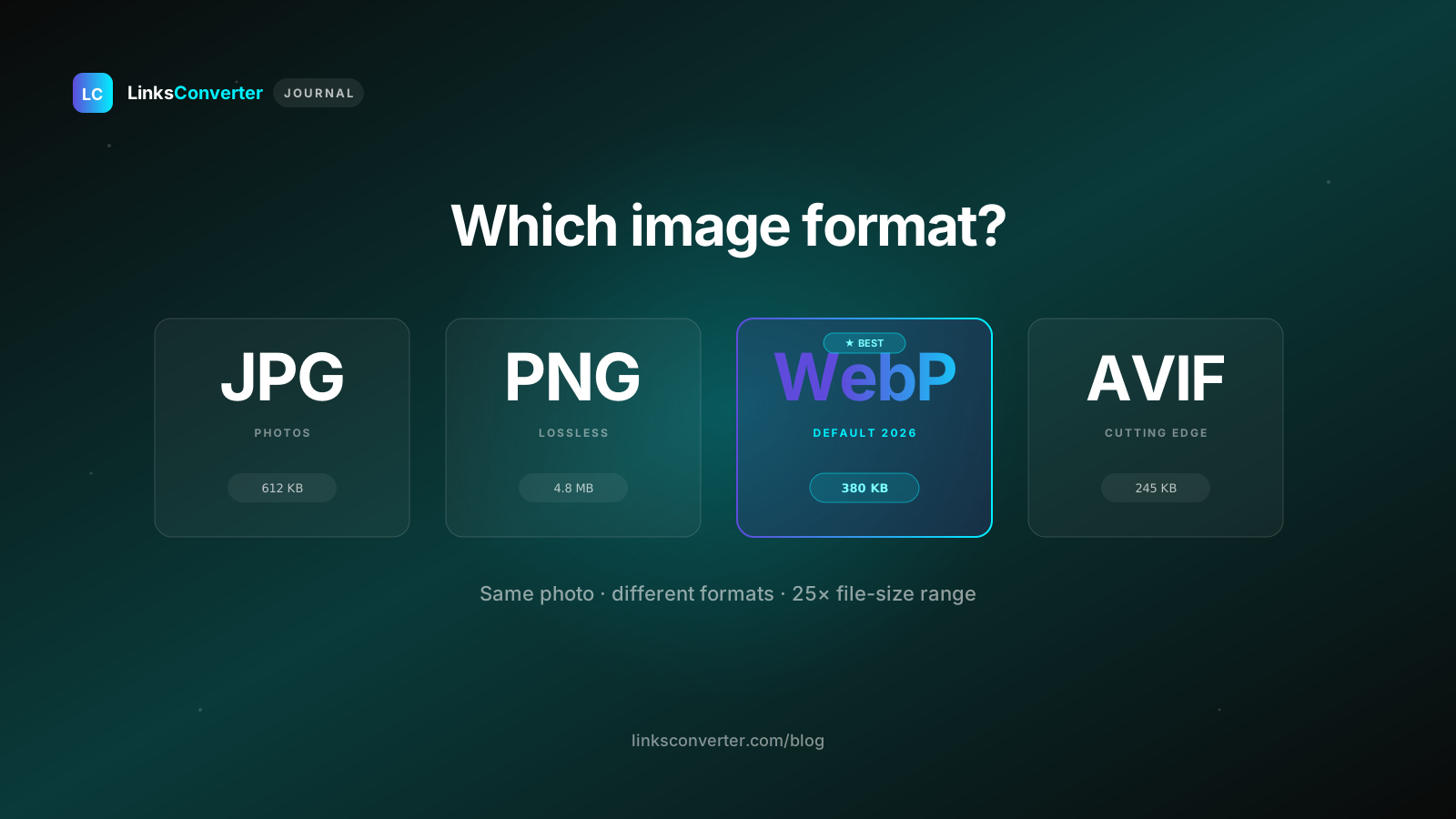
- WebP vs JPG vs PNG — a full breakdown to help you pick the right format.
Frequently asked questions
Why do my HEIC images appear blank inside desktop apps?
Why does my converted JPG look flipped or rotated?
Why won't my HEIC file convert?
Free file converters & video downloaders
No sign-up, no watermark, no email. Convert and download files online, often within a minute.
Browse all converters